AI Music on iPad vs iPhone: 2026 Workflow Test
Same AI music app, different device: when to make tracks on iPad vs iPhone. Honest workflow test for songwriters, content creators, and producers using both devices.
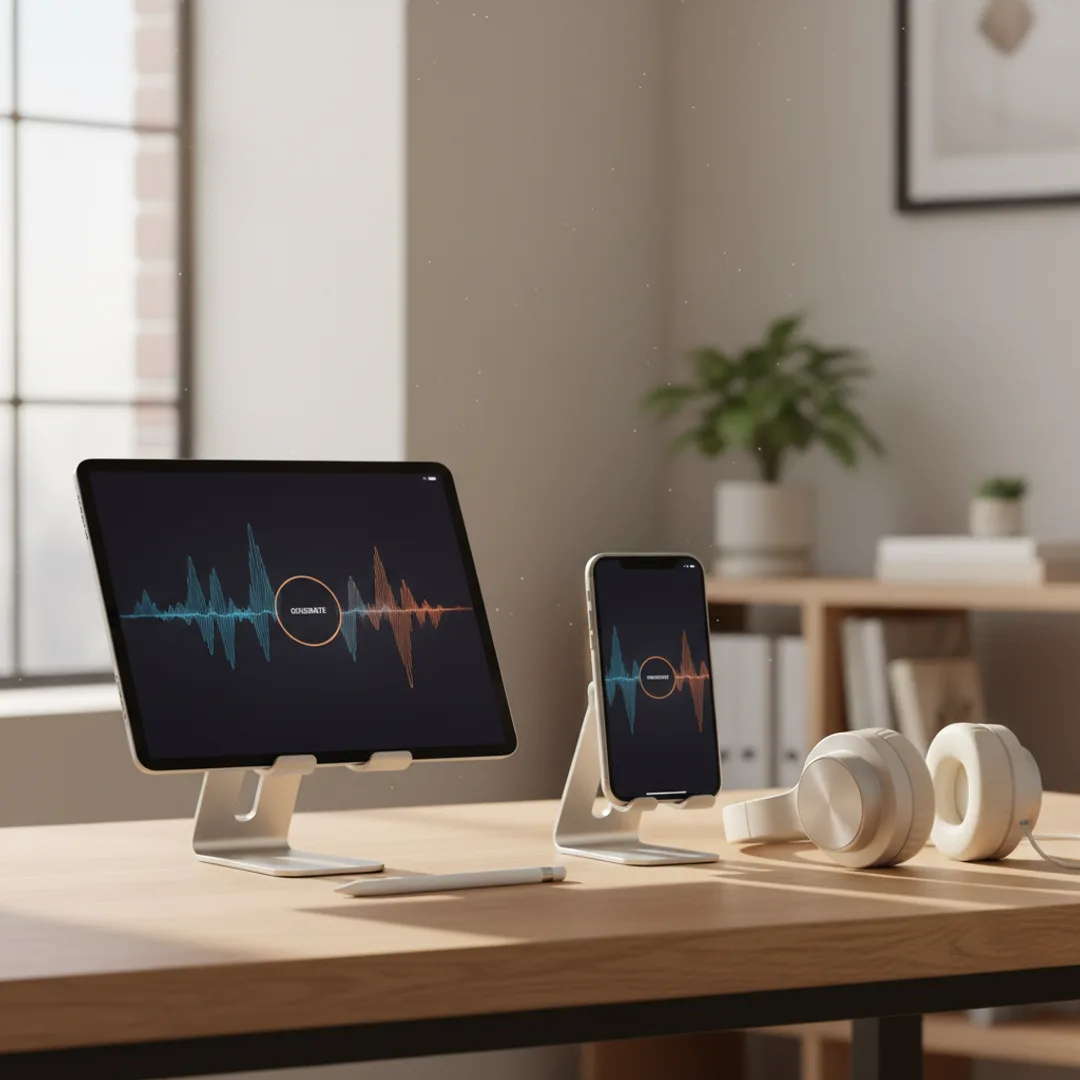
I use Muziko on both my iPhone 16 Pro and my iPad Pro M4 daily, and the workflow on each device is meaningfully different even though the app is the same. The iPhone version fits in the moments between other things — generating a quick birthday song in a coffee shop, sketching a podcast intro idea in an Uber, drafting a lo-fi track on a walk. The iPad version is where I actually finish work — writing longer lyrics with Apple Pencil, iterating across multiple takes side by side, organizing a session of related tracks for a project. Same app, same generations, two different creative experiences.
This is the iPad-versus-iPhone workflow comparison that nobody talks about because the assumption is that mobile is mobile. The actual experience tells a different story. Songwriters, content creators, and AI music users who own both devices end up with distinct use patterns for each — and learning which device fits which moment significantly improves the work.
This guide is the workflow test I have refined across about six months of daily use of both devices. When the iPhone is faster, when the iPad wins on craft, when each device's specific affordances matter, and how to organize your AI music workflow around the device that fits the work.
When each device matters most
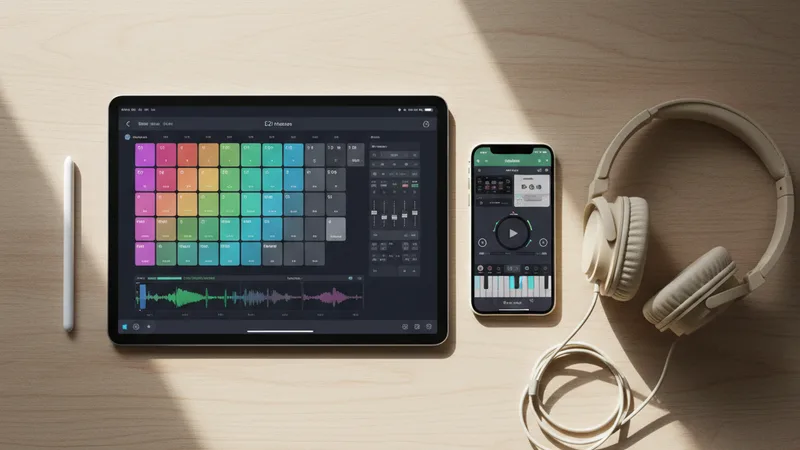
A few specifics about the iPad-versus-iPhone divide that emerge after months of daily use.
The iPhone is the always-with-you device. Whatever music idea comes to you on the bus, at the cafe, walking the dog, during a meeting break — the iPhone is the device that captures it. The friction of "wait until I get to the iPad" loses more ideas than the screen size compromise costs.
The iPad is the focused-session device. When you have 30-60 minutes set aside for music work, the iPad's larger screen, Apple Pencil compatibility, external keyboard support, and split-screen multitasking add up to a substantially better creative environment.
Both run the same Muziko app natively. Same generation engine, same feature set, same library, same account. iCloud syncs the saved tracks between devices automatically. The hardware difference is what shifts the workflow.
The screen size difference matters more than expected. The iPad's 11-13 inch screen lets you see multiple takes at once, compare waveforms, see longer lyric drafts, and write longer prompts without the constant scrolling that iPhone requires. For genuine creative work, the screen size affects the quality of decisions you make.
Apple Pencil changes the lyric-writing workflow. Writing lyrics by hand with Apple Pencil on iPad — using the Scribble feature to convert handwriting to text — is faster and more creative than typing on iPhone for many users. The handwriting-to-text path bypasses the lower-case-by-default keyboard friction of mobile typing.
For the broader mobile workflow context, the AI song generator for iPhone 2026 guide covers what makes iPhone-native AI music work specifically.
What iPhone does better than iPad

Honest accounting of where iPhone wins decisively over iPad.
Always with you. The iPhone is the device that fits in your pocket. The iPad is the device that lives on your desk, in your bag, or on your couch. For idea capture in the moments between other things, the iPhone wins on availability alone.
One-handed operation. Generating a quick track on the iPhone while walking, while standing in line, while one hand is holding a coffee cup — the one-handed operation is the iPhone's specific strength. The iPad requires a second hand or a stand.
Native AirPods integration. Plugging AirPods into iPhone is one tap; AirPods auto-switch when you put them on while iPhone is active. The iPad has the same AirPods support but the device-switching pattern slightly favors the iPhone for music playback continuity.
Camera roll and iMessage native integration. Sharing a generated track directly to iMessage, AirDrop, Instagram, or TikTok is one tap on iPhone. The iPad supports the same shares but the mobile-native social-content flow is iPhone-first.
Faster generation-listen-iterate loop on the go. When you have 2-5 minutes between tasks and want to generate a track and iterate on it once, the iPhone fits that time better than the iPad does. The setup time to start using iPad is longer.
Story Mode in Muziko works especially well on iPhone. The narrative-input mode where you describe a story for the AI to turn into a song fits one-handed mobile use — talking-through-a-story-while-walking workflows that are awkward on a desk-based iPad session.
Battery and connectivity built for mobile use. The iPhone is designed for all-day-mobile battery life and cellular connectivity. The iPad battery is comparable but the connectivity story differs (cellular iPads exist but most iPads are Wi-Fi only).
Better for ambient and walking inspiration. Many songwriters report their best ideas come when walking. The iPhone fits the walking workflow; the iPad does not.
For the broader iPhone-specific use cases, the AI song generator for iPhone 2026 guide and how to make AI songs on your iPhone in 3 minutes cover the mobile-first workflows in depth.
What iPad does better than iPhone
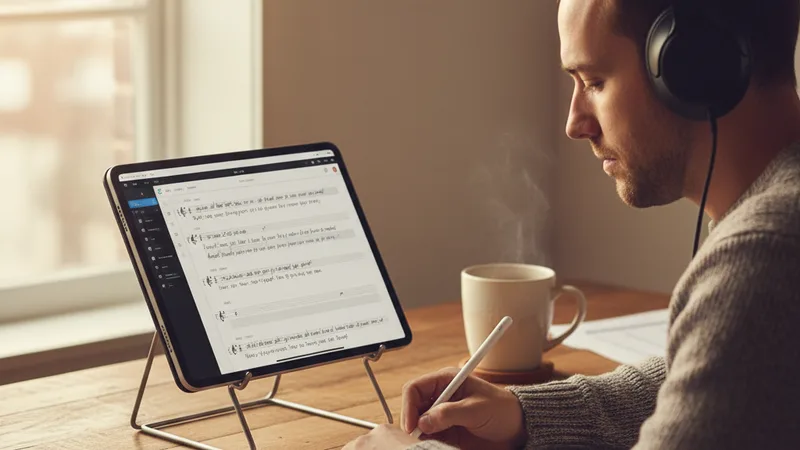
The iPad's specific advantages for focused AI music work.
Screen size for lyric writing. Writing 8-12 lines of lyrics is dramatically easier on iPad than on iPhone. The full keyboard takes less screen real estate proportionally, and longer drafts stay visible at once rather than scrolling. For multi-verse personal occasion songs and songwriter demos, this is decisive.
Apple Pencil for handwriting lyrics. The Scribble feature on iPadOS converts handwritten lyrics to text in real time. Many songwriters report writing lyrics by hand produces better lyrical content than typing — the slower pace forces more deliberate word choice. The Apple Pencil workflow is unavailable on iPhone.
External keyboard support. Connect a Magic Keyboard or any Bluetooth keyboard to the iPad and you have a near-laptop typing experience. For long lyric sessions or detailed prompt crafting, the external keyboard saves significant time. iPhone supports external keyboards too but the screen real estate is too small to benefit fully.
Split-screen multitasking. iPadOS supports running Muziko alongside another app on the same screen — notes for lyric reference, Safari for genre research, a Spotify playlist for inspiration. The split-screen flow on iPad enables a research-and-create workflow that iPhone cannot match.
Comparing multiple takes side by side. The larger screen lets you see and play multiple generated takes at once, compare waveforms, and decide between options visually. On iPhone, you scroll between takes one at a time.
Better for longer sessions. A focused 45-minute AI music creation session on iPad with iPad on a stand, AirPods or studio headphones, and an external keyboard is qualitatively different from the same session on iPhone. The ergonomics favor sustained work.
Better for collaborative work. Two people can sit together looking at an iPad screen reviewing a generated track or co-writing lyrics. The iPhone screen is too small for genuine collaborative viewing.
Better for organizing a project of related tracks. When you're producing 10-20 tracks for a podcast season, a game soundtrack, or a small album, the iPad's screen real estate makes organizing the project across multiple files manageable. iPhone organization works but feels cramped at scale.
Better for Procreate-style creative cross-app workflows. Songwriters who also do visual work (album art, lyric videos, social posts) benefit from the iPad's ecosystem of creative apps interacting well — Procreate, Final Cut Pro, Logic Pro, and Muziko all coexist cleanly.
For deeper craft prompt work, how to write AI song prompts that actually produce great music covers patterns that benefit from the larger screen.
Apple Pencil and lyric writing on iPad
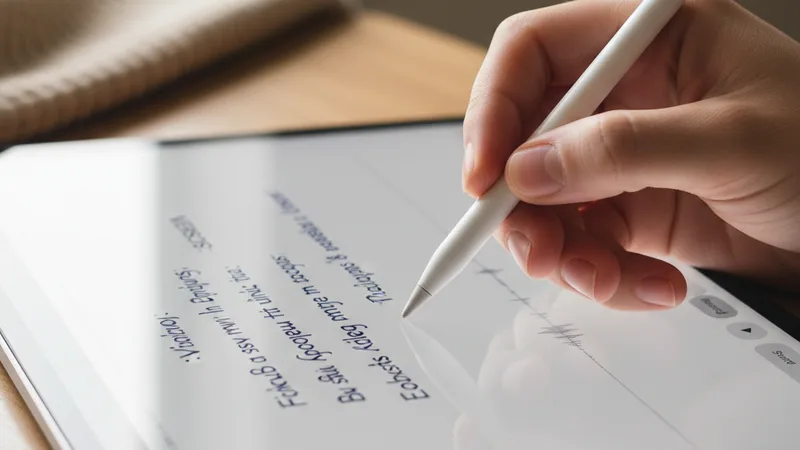
The Apple Pencil workflow deserves its own section because it changes the lyric-writing experience meaningfully.
Scribble auto-converts handwriting to text in real time. Write lyrics by hand in any text field on iPadOS — including the Write Lyrics field in Muziko — and the system converts your handwriting to typed text. The conversion is reliable across most handwriting styles in 2026.
Why handwriting often produces better lyrics:
- Slower pace forces deliberation. Typing fast encourages first-draft lyrics; handwriting slows you down enough to think about word choice.
- Less editing pressure mid-line. Crossing out and rewriting a handwritten line is psychologically easier than editing a typed line. The first draft on paper or Apple Pencil tends to flow more freely.
- More creative variation. The physical motion of handwriting engages different cognitive processes than typing. Many songwriters report meaningful differences in the lyrical content they produce by hand versus by keyboard.
- Easier to write in cursive flow. Long-form storytelling lyrics that benefit from continuous narrative flow are easier to write in handwriting than in stop-start typing.
The combined workflow:
- Open Muziko on iPad, switch to Write Lyrics mode.
- Pick up Apple Pencil.
- Handwrite lyrics directly into the Write Lyrics field. Scribble converts in real time.
- Edit and refine handwritten lyrics with the same Apple Pencil.
- Generate the track.
Apple Pencil for prompt writing:
The same Scribble workflow works in the prompt field. Writing detailed prompts by hand produces more varied and creative prompts for many users. The friction of handwriting (slower than typing) forces more careful prompt construction.
Apple Pencil for marking up takes:
When you generate multiple takes, the iPad's larger screen plus Apple Pencil lets you annotate which take you prefer, mark up specific lyric lines that need revision, and visually track decisions across takes. This is the closest experience to a producer's notebook in modern AI music creation.
For more on writing lyrics for AI music, the how to make an AI song from your lyrics guide covers the lyric-first workflow in depth.
Workflow mapping: which device for which task
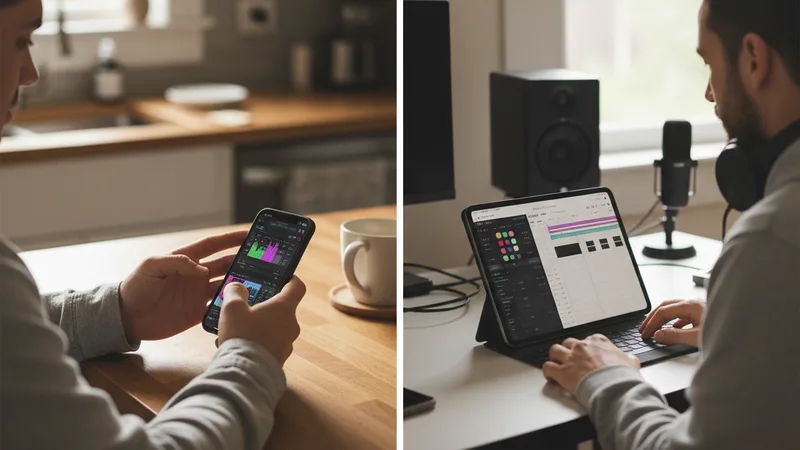
A consolidated chart of which task fits which device.
| Task | iPhone | iPad | Notes |
|---|---|---|---|
| Quick personal song (birthday, anniversary) | Best | Good | iPhone speed wins for short tracks |
| Wedding first dance song with longer lyrics | Good | Best | Lyric writing benefits from iPad screen |
| Memorial / tribute song | Good | Best | Sensitive lyric work fits iPad |
| Podcast intro music generation | Best | Good | iPhone speed wins for short cues |
| Multiple takes review and comparison | Limited | Best | iPad screen wins decisively |
| Lyric writing for songwriter demo | Good | Best | Apple Pencil + larger screen win |
| Story Mode narrative input | Best | Good | iPhone one-handed walking workflow |
| Etsy custom-song fulfillment | Best | Good | Speed wins for high-volume work |
| Collaborative co-writing session | Limited | Best | iPad supports two people watching |
| Long-form project (10+ track album) | Limited | Best | iPad organizes multi-file projects |
| TikTok / Reels short audio | Best | Good | iPhone native share workflow |
| Game music multi-cue session | Limited | Best | iPad organization wins |
| On-the-go idea capture | Best | Not applicable | iPhone is the always-with-you device |
| Writing prompts in detail | Good | Best | iPad keyboard + Pencil win |
| Translating lyrics between languages | Good | Best | iPad screen + keyboard win |
| Music research (Spotify + lyrics + Muziko split-screen) | Limited | Best | iPad multitasking wins |
| Quick podcast sting (5-15s) | Best | Good | iPhone speed wins |
| Background music for video edit | Good | Best | iPad for sessions with Final Cut |
| Custom lullaby for baby | Good | Best | Careful lyric work on iPad |
| Demo for songwriter publisher pitch | Good | Best | iPad lyric + organization wins |
| AI music app subscription management | Best | Good | Subscription handling iOS-native |
| Voice memo + Muziko hybrid (humming melody) | Best | Good | iPhone voice memo fits |
The pattern is clear: iPhone wins on speed, mobility, and one-handed quick work. iPad wins on craft, organization, and longer sessions.
For specific use case deep dives, see the AI wedding songs guide, AI memorial songs guide, AI birthday songs guide, and AI lullaby generator guide for the use-case-specific workflows.
When to use which device — honest decision guide
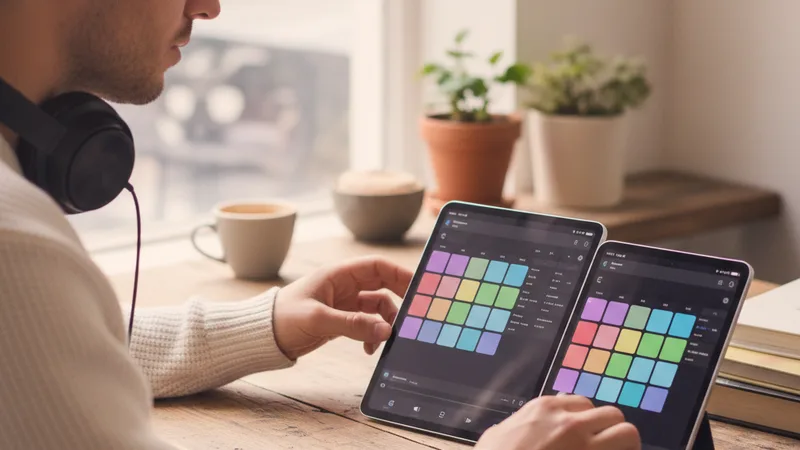
Honest accounting of when each device fits each user's workflow.
Use iPhone primarily if:
- Most of your AI music creation happens in moments between other things.
- Your songs are short (60-150 seconds) and lyrically simple.
- You generate for personal occasions, social content, podcast intros, and quick tracks.
- You don't own an iPad or your iPad is rarely with you.
- You run an Etsy custom-song shop where speed of fulfillment is the priority.
- You value the always-with-you availability over screen size or craft affordances.
- You share frequently to iMessage, TikTok, Instagram, and other social channels.
Use iPad primarily if:
- Your music creation happens in planned sessions at a desk or couch.
- Your songs require longer or more thoughtful lyrics (wedding, memorial, demo, narrative).
- You own an Apple Pencil and like handwriting workflows.
- You work on multi-track projects (podcasts, games, albums).
- You prefer comparing multiple takes side by side rather than sequentially.
- You collaborate with someone else on AI music sessions.
- You use AI music alongside other creative apps (Logic Pro, Final Cut, Procreate, etc.).
- You have an external keyboard and use it for typing-intensive work.
Use both (the common case) if:
- You own both devices and your work spans the modes above.
- You start ideas on iPhone and finish them on iPad.
- You capture inspiration on iPhone while walking and refine the result on iPad later.
- iCloud syncs your saved tracks between devices, making the iPhone-to-iPad handoff seamless.
The dominant pattern in 2026: Most users who own both devices end up with this workflow — iPhone for initial sketch and idea capture, iPad for focused lyric writing and final production. The handoff between devices is smooth because the same Muziko account syncs both.
For the broader mobile workflow comparison, the AI song generator for iPhone 2026 guide covers the iPhone-specific patterns. For non-Apple-ecosystem alternatives, the best AI music app for iPhone 2026 ranking covers what else is available.
Try the iPhone-to-iPad handoff workflow right now
The most powerful pattern for users with both devices is the iPhone-capture, iPad-refine handoff. Test it:
Step 1 (iPhone, on the go): Open Muziko. Switch to Story Mode (or Describe). Talk through a story for a song you want to make — "a memorial song for my grandmother who collected porcelain figurines and lived in a small house in the country" — and generate a quick first take.
Step 2 (iPhone, save and walk away): Save the first take. Don't worry about polishing. The point is to capture the idea, not finish it.
Step 3 (iPad, later that day or the next morning): Open Muziko on iPad. The first take you generated on iPhone is there in your library (iCloud-synced). Open it.
Step 4 (iPad, refine): Now use the iPad's larger screen and Apple Pencil to refine the lyrics. Write longer, more specific lines about your grandmother's porcelain figurines. Add details about the country house. Adjust the tempo and instrumentation in the prompt to match the more developed lyric.
Step 5 (iPad, regenerate): Generate three to five new takes with the refined lyrics and prompt. Compare side by side on the larger screen. Pick the strongest.
Step 6 (iPad, finalize): Save the final version. Share to family via the iPad's native share flow.
The whole workflow takes 20-40 minutes spread across the two devices. The result is meaningfully better than either device alone would produce, because each device contributed what it does best.
For specific use cases, see the AI memorial songs guide for tribute song workflow, the story to song AI guide for narrative-input patterns, and the AI song generator for iPhone 2026 guide for the full mobile workflow walkthrough.
Frequently asked questions
Does Muziko work the same on iPhone and iPad?
Yes, the Muziko app is the same on iPhone and iPad — same generation engine, same feature set, same library, same account. The iPad version is the same native iOS app scaled to the larger screen with iPadOS-specific affordances like Apple Pencil Scribble support, external keyboard support, and split-screen multitasking. iCloud syncs your saved tracks across all your Apple devices automatically. The differences between iPhone and iPad use are about the device experience (screen size, input methods, mobility) rather than about the app capabilities. Both devices produce identical AI generation quality.
Should I make AI music on iPhone or iPad?
Both, depending on the work. Use iPhone for short personal songs, social content, podcast intros, quick idea capture, on-the-go inspiration, and high-volume fulfillment workflows like Etsy custom-song shops. Use iPad for songs requiring careful lyric writing (wedding, memorial, songwriter demos), multi-track project organization (podcast seasons, game soundtracks), collaborative sessions where two people view a screen, work with Apple Pencil for handwritten lyrics, and longer focused sessions at a desk. Most users with both devices develop a pattern of iPhone-capture-idea, iPad-refine-and-finish, with iCloud syncing the work between devices automatically.
What does Apple Pencil add to AI music creation?
Apple Pencil on iPad enables Scribble — the system feature that converts handwritten input to text in real time. Writing lyrics or prompts by hand with Apple Pencil produces measurably different results than typing for many users. The slower pace of handwriting forces more deliberate word choice, which often produces better lyrics. The physical motion of handwriting engages different cognitive processes than typing. For songwriters who prefer writing lyrics in notebooks, Apple Pencil on iPad bridges the analog and digital lyric workflows. The Scribble conversion is reliable across most handwriting styles in 2026. iPhone supports Apple Pencil only on certain models (currently iPhone 17 Pro and later); iPad has supported Apple Pencil across the lineup for years and benefits more from the workflow.
Can I start a track on iPhone and finish on iPad?
Yes, this is the dominant pattern for users with both devices. Generate a first take on iPhone wherever you are — coffee shop, walk, lunch break. Save it. iCloud automatically syncs the saved track to your iPad library. Open the iPad later, find the saved track, refine the lyrics with Apple Pencil or external keyboard, adjust the prompt, regenerate with the refined inputs, and finalize the production on the iPad's larger screen. The handoff is seamless because both devices use the same Muziko account and saved files sync automatically. This workflow combines iPhone's mobility advantage with iPad's craft advantages.
Is the iPad faster for AI music generation than the iPhone?
Generation speed is the same on iPhone and iPad in 2026 because both devices use the same cloud-based generation. Muziko's 8-15 second generation time applies equally to both devices. The iPad's faster processor does not speed up cloud generation because the heavy lifting happens on Muziko's servers, not on the device. Where the iPad wins on workflow speed is in the surrounding tasks — writing lyrics is faster on iPad with external keyboard or Apple Pencil, comparing multiple takes is faster on the larger screen, organizing multiple files is faster with iPad screen real estate. For a single generation in isolation, iPhone and iPad are equally fast.
Do I need both iPhone and iPad, or can I just use one?
You can absolutely use either one alone — both produce excellent results. The choice depends on your work patterns. If your music creation mostly happens in moments between other things (commute, coffee, lunch break, walking), iPhone alone is sufficient and the iPad would mostly sit unused. If your music creation mostly happens in planned sessions at a desk or couch with focused time, iPad alone is sufficient. Users with both devices end up using each for what it does best, but the addition of an iPad is not necessary if your workflow fits iPhone use patterns. Most professional AI music creators I have surveyed use iPhone as the primary device and add iPad for specific session work, rather than the other way around.
Try everything you just read about. Muziko is free to download.