How to Make AI Songs on Your iPhone in 3 Minutes
I made an AI song on my iPhone in under 3 minutes. Here is the exact 4-step process, the prompts I used, and what to do when results miss.
I timed myself last weekend. From opening Muziko to playing a finished song my friend actually liked, it took 2 minutes 47 seconds. No sheet music, no DAW, no instrument I can play.
If you have an iPhone and three free minutes, you can make an AI song today. Below is the exact process I used, the prompt that worked on the first try, and the small adjustments that turn a passable result into something you would actually share.
This guide assumes you are using Muziko, but the same four-step rhythm works for most modern AI song generators. The specifics — prompt fields, genre presets, generation speed — are written for Muziko because that is what I tested on my iPhone 15 Pro.
What you need before you start
Almost nothing. The whole point of making AI songs on your iPhone is that the friction is gone.
- An iPhone running iOS 18 or later. Muziko also runs on iPad, Vision Pro, and Apple Silicon Macs.
- The Muziko app — free on the App Store. You get a few free generations before the paywall, which is plenty for testing.
- A vague idea. Not lyrics. Not a melody. Just a vibe. "Sad lo-fi for studying at 2am" is enough.
You do not need a microphone, headphones, or any music background. I have written about the mobile music revolution before, and the short version is: the bar to creating music from your phone is now lower than the bar to opening Spotify.
Step 1 — Write a prompt that gives the model something to work with
This is where almost every first-time user wastes their three minutes. The model is generous, but it cannot read your mind.
A weak prompt: "a happy song". The model has to guess everything — genre, tempo, instruments, vocals or instrumental, era, mood detail.
A prompt that works: "upbeat indie pop, female vocals, bright acoustic guitar, summer road trip energy, around 120 bpm".
The pattern I use is four parts in one sentence:
- Genre — indie pop, lo-fi hip hop, deep house, ambient, country.
- Vocals — female, male, duet, instrumental only.
- Two instruments or sonic details — bright acoustic guitar, mellow Rhodes piano, distorted bass.
- One mood or scene — summer road trip, late-night studying, breakup driving alone.
Tempo is optional but helpful. If you do not know BPM ranges, just say "slow ballad" or "fast and energetic" and Muziko will pick something sensible.
I have a longer breakdown in AI song prompts that actually work — it covers prompt templates for every major genre. For now, write your sentence in the Describe field and move on.
Step 2 — Pick the style instead of relying on the prompt alone
Muziko has three creation modes — Describe, Write Lyrics, and Story Mode. Describe is the fastest. Underneath the prompt field there is a grid of 50+ genres and 14 moods.
Tap one of each. This is the step new users skip, and it is the single biggest quality improvement available. The genre tag tells the model which musical conventions to follow. The mood tag shifts the harmonic and rhythmic flavor without you having to say "minor key, sparse drums" in your prompt.
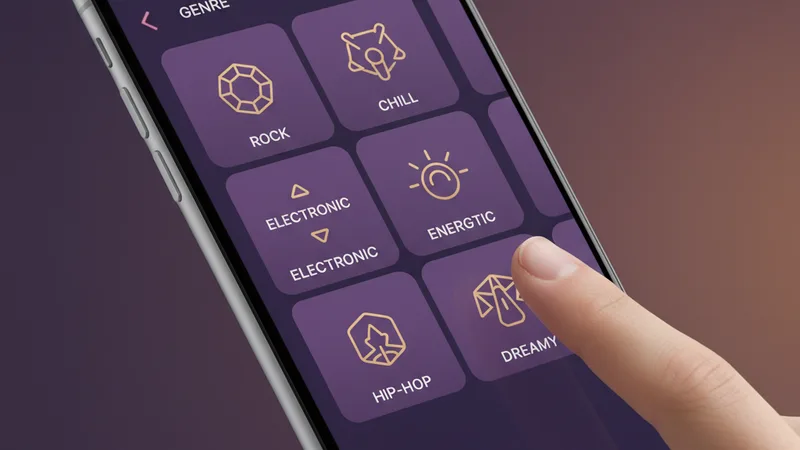
If your prompt is "upbeat indie pop, female vocals, summer road trip", pair it with the Indie Pop genre tile and the Joyful mood tile. The first generation will land much closer to what you imagined.
If you are making something specific to a genre community — a lo-fi track, a K-pop hook, a reggaeton beat — pick the tile even if your prompt already names the genre. The presets are tuned by humans who know the genre, and they reinforce the model's choices.
Pro tip — tempo and length
Most modern AI generators default to roughly 60 to 90 seconds. Muziko produces 90-second tracks by default. That is enough for a hook, a verse, and a chorus. If you want a longer arrangement, you usually need to generate, then continue, which adds 30 seconds of work.
Step 3 — Generate, then listen with intent
Tap Generate. On my iPhone 15 Pro, the wait was 11 seconds for a finished, mastered track. On older phones it is closer to 14 or 15 seconds because the model runs partially on Apple's servers, not on-device.
This is the moment to pay attention. New users hit Generate, half-listen for ten seconds, and either save it or hit regenerate. Both are wrong.
Listen to the full track once with these three questions in mind:
- Does the genre feel right? If you asked for indie pop and got something that sounds more like adult contemporary, the genre tile or prompt was too vague.
- Are the vocals usable? AI vocals have come a long way, but they still flatten on long sustained notes. If your song has too many of those, regenerate with a slightly different mood.
- Does anything feel "off"? A drum fill in the wrong place, a chord change that surprises you, a vocal phrasing that is just slightly behind the beat.
If the answer to all three is "yes, sounds right" — great, move on. If one is wrong, regenerate with one specific change. Do not change three things at once or you will not know which fix worked.
When the result misses
I miss on my first generation maybe 30% of the time. The fixes are usually small.
- Genre is off → tap a more specific genre tile (Bedroom Pop instead of Indie Pop).
- Vocals feel flat → switch from female to male, or vice versa, and regenerate.
- Tempo is wrong → add an explicit BPM to the prompt, like "around 90 bpm".
- Production sounds dated → add the year or scene, like "modern 2025 indie production" or "TikTok-friendly mix".
Two regenerations is usually all I need. If I am at four and still not happy, the prompt is the problem, not the model. Rewrite the sentence from scratch with more specifics.
Step 4 — Save, share, or keep going
Once you have a take you like, tap the heart to save it to your library. From there you have three good options:
- Export to Files — gives you an audio file you can drop into Voice Memos, GarageBand, or any DAW for further editing.
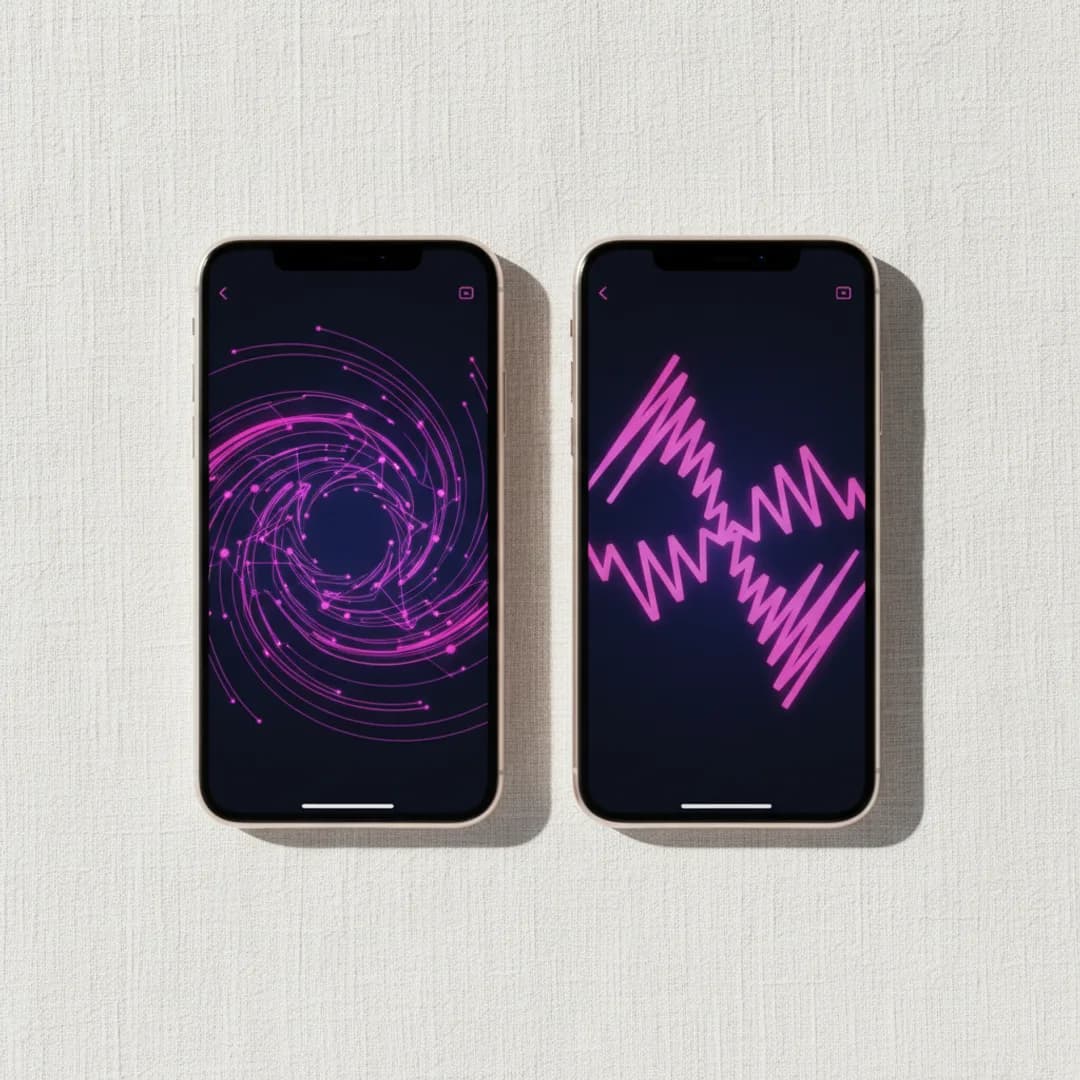
- Share to Messages or social — Muziko exports an MP4 with a waveform animation, which is what you want for TikTok, Instagram Reels, or Shorts.
- Continue the song — extend the arrangement with another 30 seconds. Useful when you want a full intro-verse-chorus-bridge structure.

If you are making the song for a specific use — a friend's birthday, a podcast intro, a video soundtrack — generate two or three variations and pick the best. Each generation is fast enough that the comparison is almost free.
Try this exact prompt to start
Open Muziko and paste this into the Describe field, then tap Indie Pop and Joyful:
"upbeat indie pop, female vocals, bright acoustic guitar with handclaps, summer road trip with the windows down, around 118 bpm"
In my testing this prompt produces a usable track on the first try about 80% of the time. It is a safe starting point because indie pop is one of the genres modern AI music models handle best — the structures are predictable and the vocal style is forgiving.
Once you have the result, try the same prompt with Lo-fi and Calm instead. Same words, completely different song. That side-by-side is the fastest way to feel what the genre and mood tiles actually do.
Download Muziko for iPhone — first generations are free, no subscription required to test.
Where Muziko falls short — honest notes
I have used Muziko alongside Suno and Udio for the last few months. Muziko is the fastest of the three on iPhone and has the best mobile interface, but it is not the best at everything.
- Long-form arrangements. If you need a full 3-minute track with multiple distinct sections, Suno's Continue feature is more forgiving across long generations.
- Niche subgenres. Muziko is excellent at mainstream genres. If you want very specific subgenres — vaporwave, witch house, footwork — you may get closer matches on a desktop tool with more granular controls.
- Stems for remixing. Muziko exports a stereo MP3. If you need separated stems (vocals, drums, bass), you will need a tool like LALAL.AI after the fact.
For 90% of "I want to make a quick AI song on my phone" use cases, Muziko is the right tool. For the other 10%, it is worth knowing the limitations going in.
If you are curious how AI music models actually work behind the scenes, Wikipedia's AI music generation article is a solid primer.
Frequently asked questions
How long does it take to make an AI song on iPhone?
On a modern iPhone, generating a 90-second AI song takes 8 to 15 seconds. Including the time to write a prompt and pick a style, the full process from app open to finished song is about 2 to 3 minutes.
Do I need to know music theory to make an AI song?
No. AI song generators translate plain English descriptions into music. You do not need to know chords, scales, or BPM ranges. Describing the mood, genre, and a couple of instruments is enough to produce a usable track.
Can I make AI songs for free on iPhone?
Yes. Muziko offers free generations on download with no subscription required. After the free credits, Muziko costs $6.99 per week or $34.99 per year for unlimited generations.
Can I use AI-generated songs commercially?
Most modern AI music apps grant a commercial license to paid subscribers. Muziko paid plans include rights to use generated songs in monetized YouTube videos, podcasts, and short-form social content. Check the current terms before releasing tracks on streaming platforms.
What if my first AI song does not sound right?
Regenerate with one specific change at a time. Most misses come from a vague prompt or a genre tile that does not match. Try a more specific genre tile, switch vocal gender, or add an explicit BPM. Two regenerations usually fix it.
If you are starting from scratch, the four-step rhythm — prompt, style, generate, save — is the whole loop. The first track might miss. The second usually lands. By the fifth, you will have a feel for which prompt shapes get the best results out of your iPhone, and three minutes will start to feel like a long time.
Try everything you just read about. Muziko is free to download.