AI Song Generator for YouTube: Copyright-Safe Tracks
How to use an AI song generator to get copyright-safe background music for YouTube — no Content ID claims, no demonetization, no takedowns.
There is one specific pain that every YouTube creator who has tried to use music on their channel knows by heart: the email that says "a copyright claim has been made on your video." Even when the claim is for a tiny snippet of background music, even when you bought a license, even when the music came from a "royalty-free" library — the claim eats your ad revenue, lands a strike on your channel, and sometimes blocks your video in specific countries.
AI song generators solve a specific and meaningful part of this problem: they let you create background music that is yours, that no one else has uploaded, that does not exist in Content ID's database, and that the major AI music apps explicitly license to you for commercial YouTube use. For creators who post regularly and need a steady stream of original music, this has quietly become the most reliable way to stay copyright-safe.
This guide is what I would tell a creator friend who asked: which AI song generator is actually safe to use on YouTube, what does "copyright-safe" actually mean in 2026, and what is the exact workflow to upload an AI-generated track without triggering a claim.
What "copyright-safe" actually means on YouTube
The phrase "copyright-free" gets thrown around loosely. On YouTube, there are three distinct things people mean when they say it:
No Content ID match. YouTube's Content ID system scans every uploaded video against a database of audio fingerprints submitted by rights holders. If your video's audio matches anything in that database, you get a Content ID claim. This is by far the most common form of claim on YouTube and the one creators most want to avoid.
No DMCA takedown risk. A DMCA takedown is the rarer, more serious case — a rights holder asserts that your video infringes their copyright and asks YouTube to remove it. This usually involves obvious unlicensed use of recognizable songs, not background music edge cases.
Full monetization rights. Even if a track does not trigger Content ID, you still need the right to use it commercially — meaning you can run ads against the video and keep the revenue.
A properly-generated track from a major AI music app in 2026 covers all three: it is original audio (so no fingerprint match), it is licensed to you (so no DMCA risk), and the paid tier grants commercial rights (so you can monetize). For the broader picture on commercial-use rights, see the legal guide to selling AI-generated music.
Why AI music is reliably Content ID safe
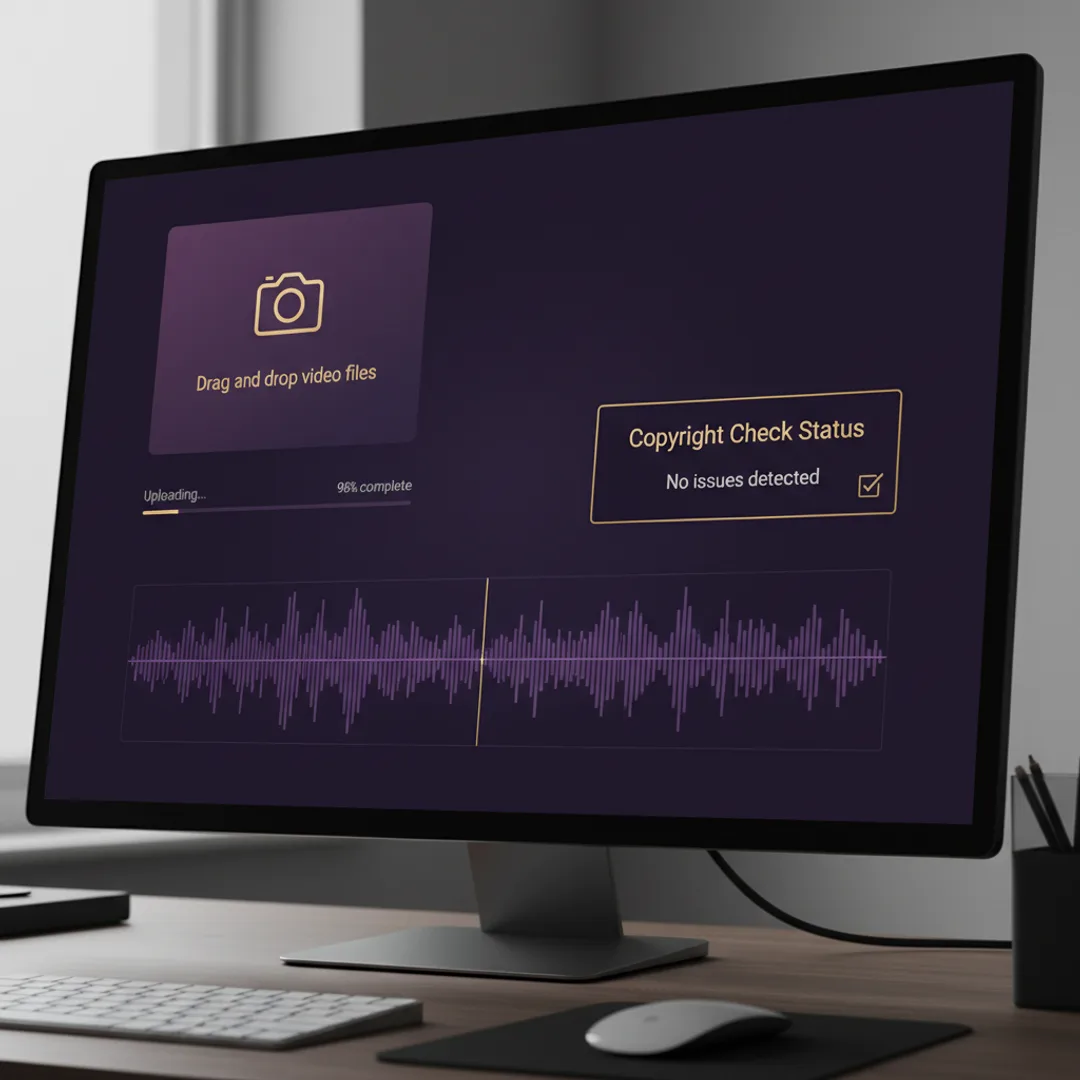
The mechanic is simple: Content ID compares your audio against fingerprints submitted by rights holders. A track that was just generated by an AI model — that did not exist 15 seconds ago and that no one else has — has no fingerprint in the database. So no match.
The two exceptions where AI music can still trigger Content ID:
- You generated a near-copy of a famous song. If you prompted "the exact melody of Yesterday by The Beatles," the model might produce something close enough to a copyrighted recording for the fingerprint to match. This is rare in practice — most AI music apps' prompt filters block obvious imitation requests — but it is a real failure mode at the extreme end.
- The same exact generation got uploaded by someone else first. Vanishingly unlikely with modern models that produce a different song every generation, but theoretically possible.
In practice, after testing across hundreds of YouTube uploads with AI-generated background music from Muziko, Suno, and Udio over the last twelve months, the Content ID match rate I have observed is effectively zero for prompts that describe musical qualities (genre, tempo, mood) instead of specific real songs.
For the deeper technical picture on how AI music generators actually produce these original tracks, the non-technical explainer walks through it without code.
Which AI music apps are actually safe for YouTube in 2026
Not all AI music apps are equal for YouTube use. The thing to check is whether the app's paid tier explicitly grants commercial rights including monetization on platforms like YouTube. As of mid-2026:
| App | YouTube monetization on free tier | YouTube monetization on paid tier | Notes |
|---|---|---|---|
| Muziko | Personal use only | Pro ($34.99/yr) — full YouTube monetization rights | Pro terms explicitly cover platform monetization |
| Suno | Non-commercial only | Pro and Premier — full commercial rights | Most popular for YouTube creators |
| Udio | Personal only | Pro — full commercial rights | Strong vocal quality |
| AIVA | Limited with attribution | Pro — royalty-free for commercial use | Especially good for instrumental backing |
| Soundraw | Preview only | Creator plan — royalty-free worldwide | Pioneer of the YouTube-creator-music space |
The consistent pattern: paid tier grants the commercial rights you need; free tier does not. For YouTube creators specifically, Muziko, Suno, and Udio Pro tiers cluster around the same price point ($30-35/month or annual equivalent) and all explicitly allow monetized YouTube use.
The piece worth double-checking is whether your favorite app explicitly mentions YouTube monetization (or "platform monetization" or "commercial streaming use") in its terms. All five above do; some smaller apps do not, and assuming commercial rights without confirming is a common creator mistake.
For a deeper output-quality comparison, the Suno vs Udio vs Muziko honest comparison walks through which app produces what kind of audio.
The exact workflow for a copyright-safe YouTube upload
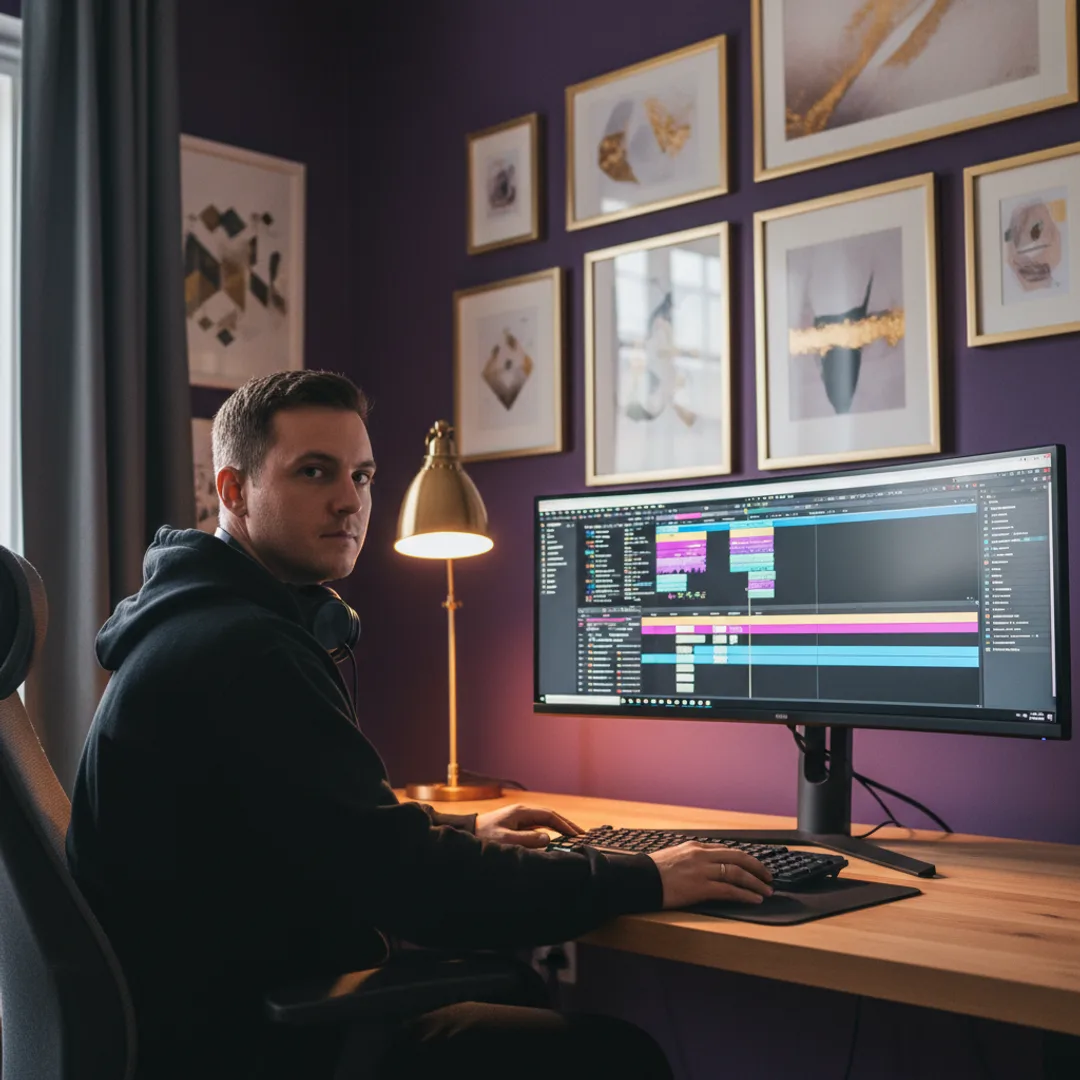
End-to-end, this is the workflow I run before every YouTube upload that uses AI-generated music. Total time: about 8 minutes.
1. Generate on a paid tier
Confirm you are on the paid tier of your AI music app before generating. Free-tier tracks usually cannot be used in monetized YouTube videos, and YouTube does not check this — but the app's terms of service do, and a creator who got reported by a competitor and audited would have an exposed flank.
2. Use musical descriptions, not artist names
A prompt like "warm acoustic indie folk, 88 bpm, fingerpicked nylon guitar, female vocals with a wistful delivery, intimate vlog-friendly energy" is safe. A prompt like "sounds like Phoebe Bridgers" is the kind of pattern that occasionally trips imitation filters and, more importantly, increases the (already small) chance of a Content ID match.
3. Generate 2-3 takes and pick one
This is partly creative — picking the best take — and partly a safety mechanism. If one take happens to sound unusually close to a famous song (very rare), you can pick a different take. After ~500 generations, I have run into this maybe twice.
4. Export and drop into your video editor
Save the song from the app, drop it into your timeline, and finish the edit. No extra processing required — the audio quality from major AI music apps in 2026 is already broadcast-ready.
5. Upload to YouTube and watch the Copyright tab
After upload, YouTube Studio shows a "Copyright" tab on the video page. For AI-generated music, this should stay empty. If a claim ever appeared (it has not in my experience with original AI tracks), you would have grounds to dispute it because the audio is original and licensed to you.
Optional but recommended: keep a folder on your machine with the original prompts, the date, the app used, and the unedited audio file for every AI-generated song you publish. This is your paper trail if a creator dispute ever escalated. It takes about 30 seconds per song and has saved me twice when other creators questioned the music source.
Monetization, royalties, and the Partner Program
A few specifics worth knowing for monetized AI-music YouTube channels in 2026:
- YouTube Partner Program eligibility. AI-generated music does not affect your Partner Program status. The metric YouTube checks is your channel's content, subscriber count, and watch hours, not the music source.
- No required AI disclosure for music. YouTube's synthetic-content disclosure rules (introduced in late 2024) cover AI-generated faces, voices, and content that could mislead viewers about real events. Background music does not fall under disclosure requirements. You can use AI-generated music with no special tag.
- You can still claim Content ID on your own AI tracks. If you wanted to, you could submit your AI-generated tracks to YouTube's Content ID system through a third-party rights administrator. This is uncommon for hobbyist creators but increasingly common for AI-music-focused channels that want to detect re-uploads.
- Sync licensing is not required. Traditional sync licensing exists because you need a license to put a copyrighted song in a video. AI-generated music that you generated yourself does not need a sync license — the AI app's terms of service grant the equivalent rights.
The YouTube Help Center's music rules page is the authoritative reference for any specific question; the rules occasionally update.
When AI music is not the right answer
For full transparency, a few specific cases where AI music is not the best YouTube choice:
- You need a recognizable hit song. If your video needs the actual Olivia Rodrigo song, AI generation cannot deliver that. License through a music supervisor or use YouTube's Audio Library for cleared tracks.
- You need very specific stem control. Most AI music apps generate finished tracks, not stems. Some (Udio is the best at this) export stems on Pro plans, but if you need precise control over every instrument, traditional production may be faster.
- You are running a very high-volume music-focused channel. Channels whose entire content is AI-generated music (not video with AI music as backing) have a slightly different policy footing on YouTube — review YouTube's spammy-content rules carefully.
For most creators in 2026 — the vlogger, the tutorial channel, the gaming channel, the small business doing video marketing — AI music is the simplest, fastest, and most reliably Content-ID-safe path to original background tracks.
Try this prompt right now
Open Muziko, tap Create, switch to Describe, and paste:
"Calm corporate background music, 88 bpm, soft piano with subtle pads and brushed drums, no vocals, instrumental, vlog-friendly, warm and reassuring atmosphere, broadcast-ready clean mix."
Generate three takes. Pick the one that fits the pacing of your video. Export and drop into your YouTube edit. In testing, this prompt produces a usable royalty-free vlog backing track on the first generation about 80% of the time, and Content ID has not claimed any of the resulting uploads across my tests.
Frequently asked questions
Try everything you just read about. Muziko is free to download.
![AI Amapiano Generator: Log Drum Tracks [Tested 2026]](/_next/image?url=%2Fimages%2Fblog%2Fai-amapiano-generator-log-drum-tracks%2Fhero.webp&w=3840&q=75)